The Shadopan launcher is a free Windows app that downloads Mists of Pandaria 5.4.8, installs Shadopan's own Windows client, keeps it up to date and starts it. Download it from the Launcher page, run the installer, sign in with your Shadopan account and press Play. If you already have a 5.4.8 folder, the launcher reuses the files that match and downloads only the rest.
At a glance
- What it is: a free Windows launcher (version 1.0.0) for Shadopan, a Mists of Pandaria 5.4.8 server
- Download: https://shadopan.com/launcher/Shadopan-Setup.exe, an installer of about 120 MB
- Systems: Windows 10 or 11, 64-bit. On a Mac, Linux, a Chromebook or a phone, play in the browser
- Account: the same free Shadopan account and characters as the browser game
- Existing 5.4.8 install: reused, complete or partial; only the missing files are downloaded
- Price: free, nothing to buy
Shadopan is a fan-run server and is not affiliated with Blizzard Entertainment.
What does the launcher install?
The launcher installs Shadopan's own build of the 5.4.8 client for Windows, with Shadopan's changes, plus the game data it needs. It connects to the same servers as the browser game at https://play.shadopan.com, so your account, realm and characters are the same whichever way you play.
You do not need to find a 5.4.8 client anywhere else, edit a realmlist or copy patches by hand. If you want to know why most MoP servers ask for that, see MoP 5.4.8 private server: patch and realm info.
How to download and install the launcher
1. Open the Launcher page and press Download for Windows. You get Shadopan-Setup.exe.
2. Run it. If Windows shows "Windows protected your PC", click More info, then Run anyway (the next section explains why).
3. Choose the folder to install the launcher in. The installer is per user, so it does not ask for administrator rights, and it adds desktop and Start menu shortcuts.
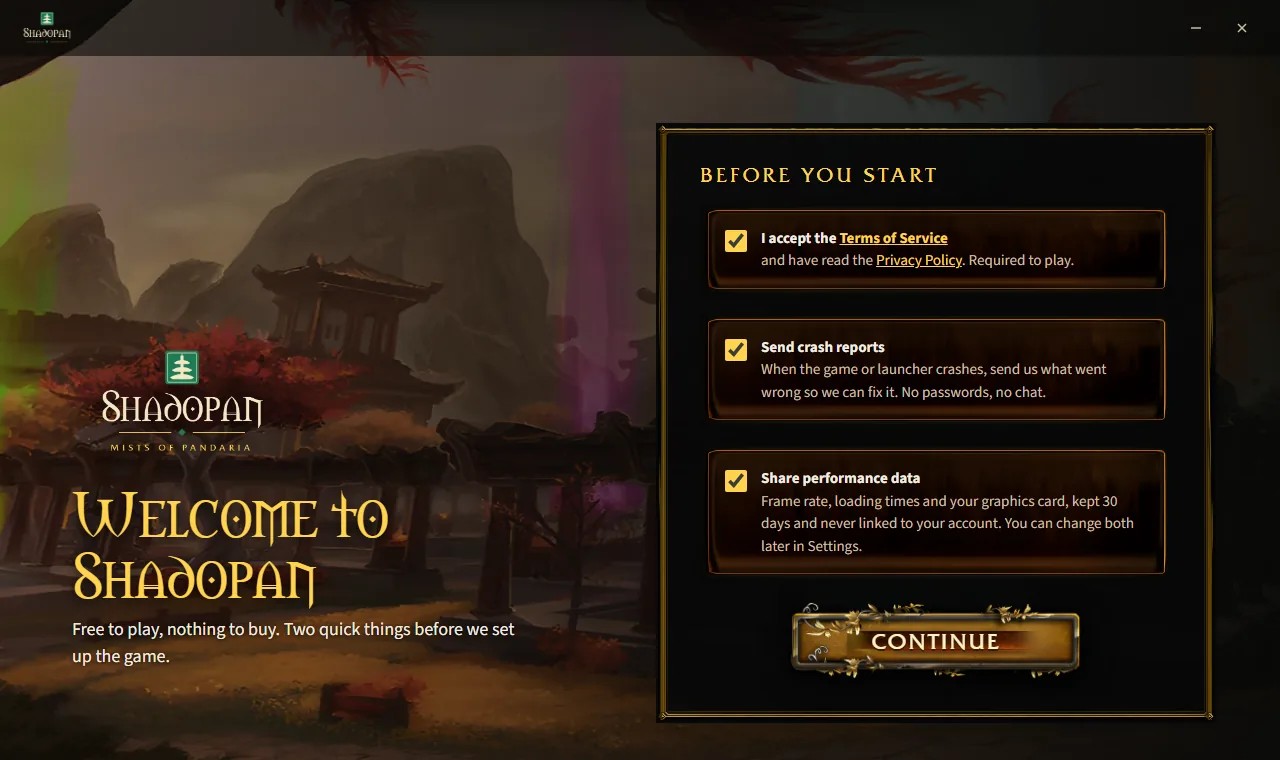
4. On the first start, accept the terms and choose whether to send crash reports and performance data. You can change both later in Settings.
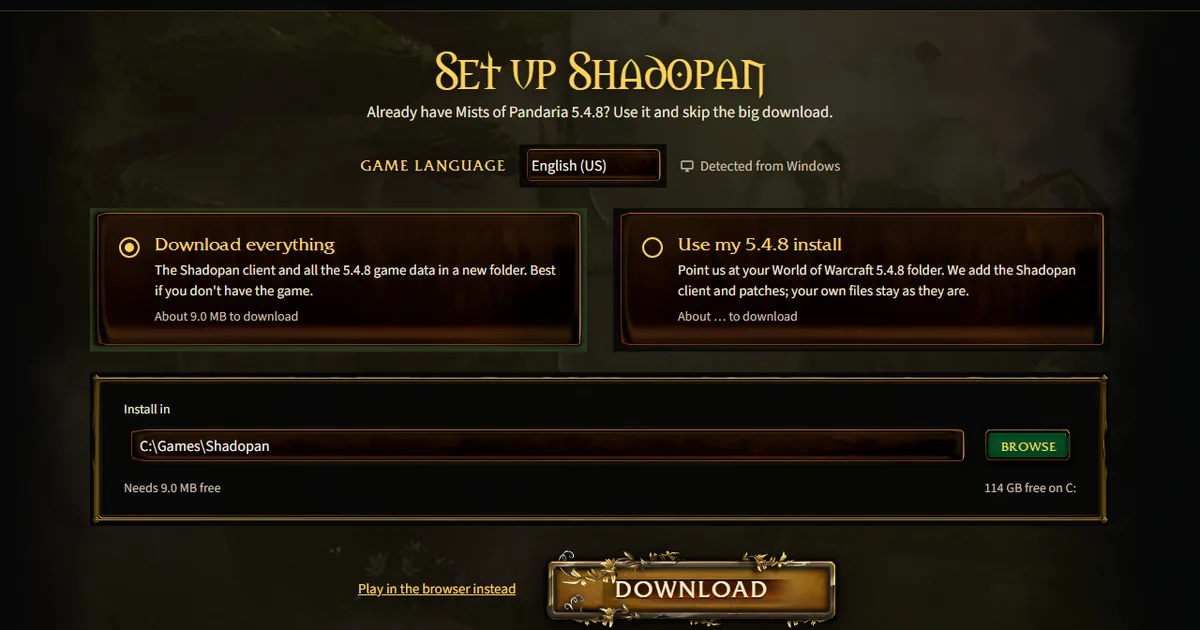
 5. Pick how to get the game files: Download everything, or Use my 5.4.8 install. The game language is detected from Windows and can be changed here.
6. Sign in with your Shadopan account name (not your email) and password. No account yet? Use Create a free account; the same account works on the website and in the browser.
7. Press Play as soon as it unlocks.
5. Pick how to get the game files: Download everything, or Use my 5.4.8 install. The game language is detected from Windows and can be changed here.
6. Sign in with your Shadopan account name (not your email) and password. No account yet? Use Create a free account; the same account works on the website and in the browser.
7. Press Play as soon as it unlocks.Fix "Windows protected your PC" (SmartScreen)
The installer is not code-signed yet, so Windows SmartScreen does not recognise it and shows a blue "Windows protected your PC" box the first time you run it. To continue:
1. Click More info.
2. Check that the app is Shadopan-Setup.exe.
3. Click Run anyway.
Download the launcher only from shadopan.com. A copy from anywhere else is a program you would run on your computer without knowing who changed it.
Use an existing 5.4.8 folder to skip most of the download
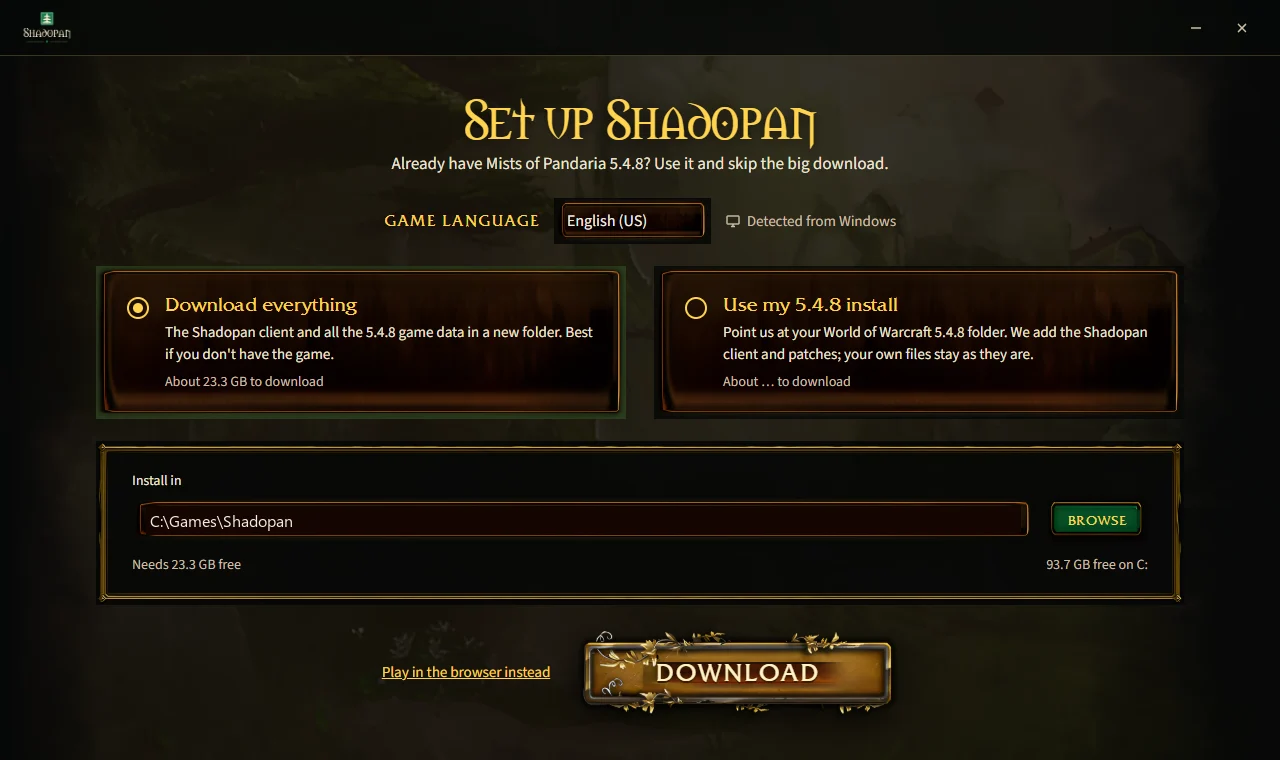 If you already have World of Warcraft 5.4.8, choose Use my 5.4.8 install and point the launcher at that folder. It checks the files there, reuses every piece that matches, even from a partial install, and downloads only what is missing. Your own files stay as they are; the Shadopan client and patches are added beside them.
Without a 5.4.8 folder, choose Download everything. The launcher then downloads the whole game, which is about the size of a normal 5.4.8 install, so check that the drive has room for it.
Play while the rest downloads
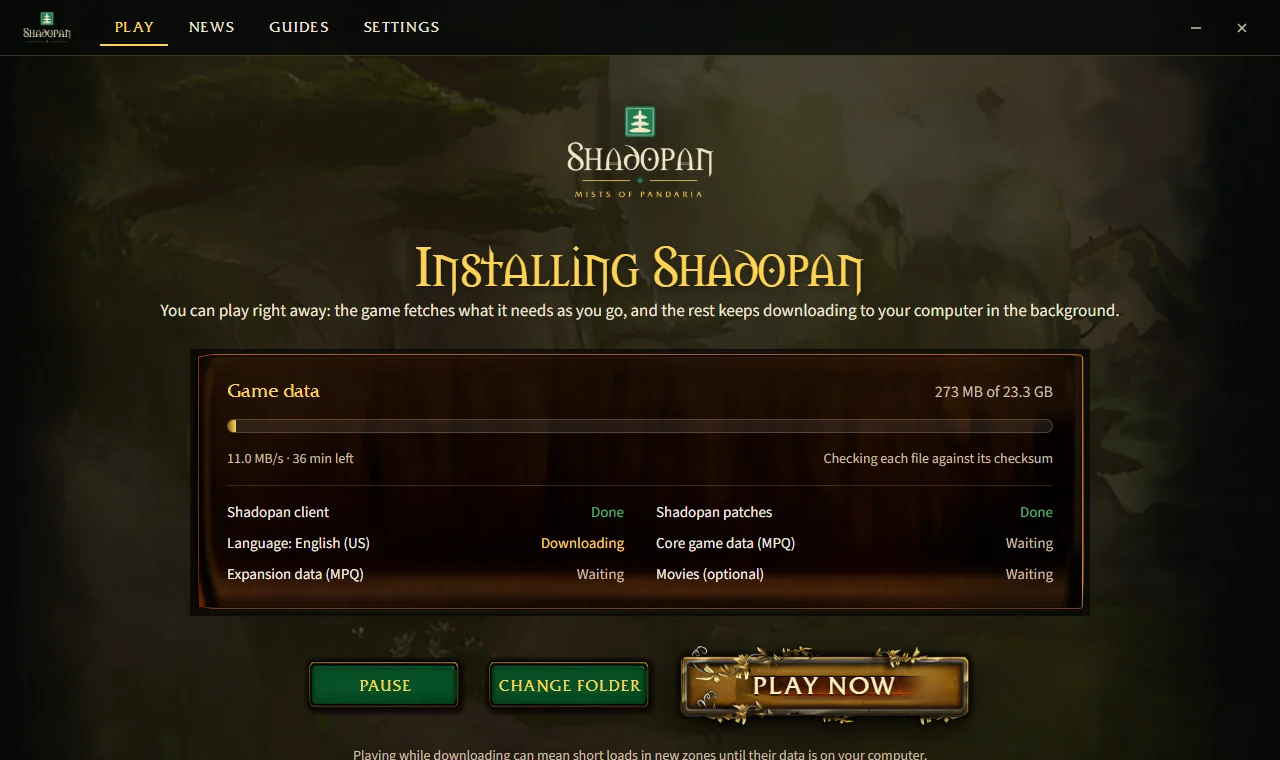 You do not have to wait for the full download. Play unlocks once the files needed to start are on your computer, and the rest keeps downloading in the background. Until a zone's data is on your computer, entering it for the first time can mean a short load.
You stay in control of the download:
- Pause and Resume on the install screen
- Download speed in Settings, to keep bandwidth for something else
- Repair game files in Settings, which checks every file and downloads only the ones that failed again
The launcher also updates itself: a new version downloads in the background and is ready after a restart.
Launcher or browser: which should you use?
Both reach the same realm, Shadopan (PvP, level cap 85 for now and 90 when Pandaria opens, free with nothing to buy), with the same account and characters.
- Browser: nothing to install. It runs at https://play.shadopan.com on Windows, Mac, Linux and Chromebook, and on phones and tablets. See Play WoW without downloading.
- Launcher: Windows only. It installs Shadopan's Windows client and keeps the game files on your computer instead of in the browser's storage.
There is no Mac or Linux launcher yet. On those, play in the browser.
Download problems
- "The download stopped": the connection to the download server dropped. Nothing is lost; the launcher keeps every finished part, tries again by itself, and Try again carries on from where it stopped.
- "Some game files are damaged": press Repair, or Repair game files in Settings. Only the files that failed the check are downloaded again.
- "Not enough disk space": free some space and press Check again, or use Move to another drive. The launcher carries on from there.
- "This folder isn't World of Warcraft 5.4.8 (build 18414)": pick the folder that holds Wow.exe and the Data folder. If your copy is another patch, use Download everything instead.
- Signed in but cannot connect in the game: see Disconnected from the server.
Still stuck?
Ask on our Discord (linked from https://shadopan.com) or use the Support page. Tell us your Windows version, what the launcher showed and at which step.